Google Pixel Mobile Photography Guide for Better Photos
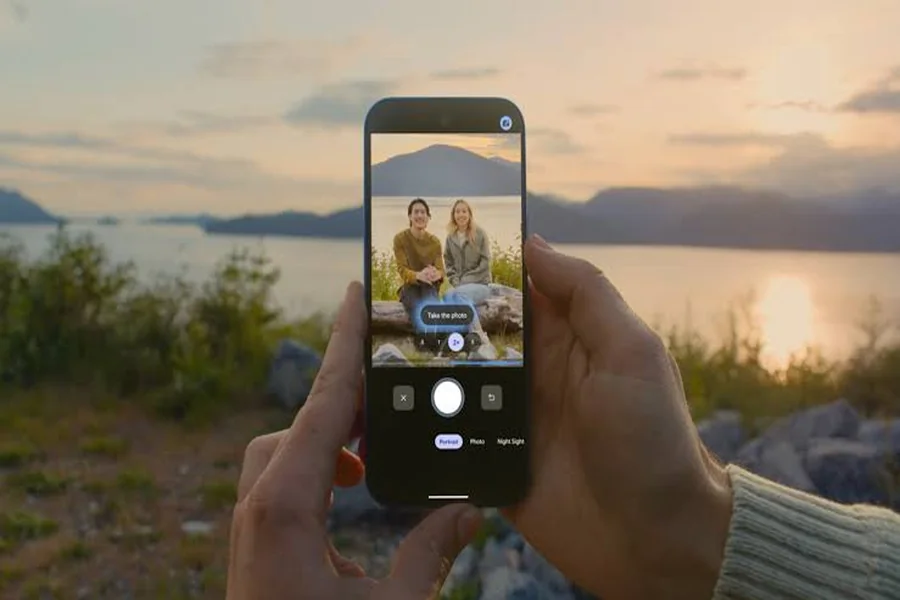
Google Pixel Mobile Photography Guide can help you capture sharper, brighter, and more attractive pictures with your smartphone. Google Pixel phones are known for their advanced image processing, helpful camera features, and impressive photography capabilities. Whether you enjoy taking portraits, photographing landscapes, capturing family moments, or sharing pictures on social media, learning how to use your camera effectively can improve your results.
You do not need expensive photography equipment to take beautiful photos. By understanding camera modes, lighting, composition, and editing tools, you can make better use of your Pixel phone. Simple techniques such as keeping your lens clean, focusing carefully, and choosing the right shooting mode can make a noticeable difference.
The best results come from combining your phone’s technology with good photography habits. With regular practice, you can develop your skills and capture memorable moments with greater confidence.
Best Google Pixel Camera Features to Use
Google Pixel smartphones include camera features designed to make photography convenient for beginners and experienced users. Available features depend on your Pixel model and software version, but several options are particularly useful for everyday photography.
1. Photo Mode
Photo mode is an excellent starting point for everyday pictures. It automatically manages many camera settings, including focus, exposure, and image processing. This makes it suitable for photographing people, pets, food, buildings, and spontaneous moments.
For the best results, tap your main subject on the screen to help the camera focus correctly. If the image looks too bright or dark, adjust the exposure control when available. Small adjustments can help preserve details and improve the overall appearance.
2. Portrait Mode
Portrait mode is useful when you want your subject to stand out against a softer background. It is particularly effective for portraits of people and pets, although results depend on lighting and the complexity of the scene.
Position your subject away from the background when possible. This can make the background blur look more natural and create a stronger sense of depth. Check the edges around hair, clothing, and other details to ensure the effect looks realistic.
3. Night Sight
Night Sight helps capture photos in dim environments by combining image information and computational processing. It can reveal details in nighttime streets, indoor spaces, and evening landscapes.
Keep your phone steady while the camera captures the image. Moving the phone during a longer capture can cause blur. Night Sight works especially well for relatively still subjects, while moving people and animals may require brighter lighting.
4. Ultrawide and Zoom Options
Depending on your Pixel model, you may have access to ultrawide photography and different zoom levels. An ultrawide lens can help capture large landscapes, architecture, and group photographs when you cannot move farther away.
Zoom is helpful when a subject is difficult to reach, but excessive digital zoom can reduce image quality. Whenever practical, move closer to your subject or use the camera lens best suited to the scene.
How to Improve Lighting and Photo Composition
Lighting and composition are two of the most important parts of smartphone photography. Even a capable camera can produce disappointing results when the subject is poorly lit or the image is cluttered.
1. Use Natural Light
Natural light often produces attractive results without requiring additional equipment. Early morning and late afternoon can provide softer light for portraits, landscapes, and outdoor scenes.
When photographing people in strong sunlight, look for open shade to reduce harsh shadows. Indoors, try positioning your subject near a window. Soft window light can reveal facial details and create a more natural appearance.
Avoid pointing the camera directly toward extremely bright light sources unless you want a silhouette or another creative effect. Experiment with your position to see how the light changes the subject.
2. Apply the Rule of Thirds
The rule of thirds is a simple composition technique. Imagine dividing the frame into nine equal sections using two horizontal and two vertical lines. Positioning your subject near one of these lines or intersections can create a balanced image.
Many camera apps offer grid lines to help you compose photographs. These are useful for keeping horizons straight and positioning subjects consistently.
However, the rule of thirds is only a guideline. Centered compositions can work beautifully for portraits, architecture, and symmetrical scenes. Try different arrangements instead of using the same composition every time.
3. Keep Backgrounds Simple
A busy background can distract viewers from the main subject. Before taking a photograph, check the edges of the frame for unnecessary objects, bright distractions, or visual clutter.
Moving a few steps to one side can sometimes improve a picture more than applying an elaborate filter. You can also use doorways, trees, or other natural elements to frame your subject and draw attention toward it.
4. Experiment With Angles
Taking every photograph from eye level can make your collection look repetitive. Try photographing subjects from slightly above, below, or from the side.
For food photography, an overhead view may work well for flat arrangements, while a lower angle can emphasize layers. For pets, getting closer to eye level can create a more engaging photograph.
Tips for Portraits, Landscapes, and Everyday Photography
Different subjects require different techniques. Adjusting your approach to the scene can help you make better use of your Google Pixel camera.
1. Capture Better Portraits
Focus on the person’s eyes whenever possible. Choose soft lighting and position the subject away from distracting backgrounds. Portrait mode can add background blur, but natural lighting and thoughtful composition remain important.
For group photographs, make sure everyone is visible and avoid placing people too close to the edges if the lens may distort their appearance. Take several pictures so you have more opportunities to choose one where everyone looks their best.
2. Improve Landscape Photography
Landscape photographs often benefit from depth and a clear focal point. Include interesting foreground elements, such as flowers, rocks, or pathways, to lead the viewer’s eyes into the scene.
Keep the horizon level and pay attention to the sky. If the sky is especially bright, adjust the composition or exposure to help preserve detail. The ultrawide camera on supported Pixel models can capture expansive views, though objects near the edges may appear stretched.
3. Take More Attractive Food Photos
Food photography works well with soft natural light and uncluttered backgrounds. Place the dish near a window and experiment with overhead and angled shots.
Pay attention to colors and presentation before taking the picture. Clean the camera lens, remove unnecessary objects from the frame, and focus on the most appealing part of the dish.
4. Photograph Moving Subjects
Pets, children, sports, and street scenes often involve unpredictable movement. Use sufficient lighting and keep your phone ready to capture the moment.
Take multiple pictures when possible because small movements can change facial expressions and composition. If your camera offers motion-related features, experiment with them to see which options work best for your subject.
For additional smartphone photography ideas, camera guides, and technology-related information, visit pixelspinx. Exploring relevant resources alongside regular practice can help you better understand your Pixel’s features and improve your photography workflow.
How to Take Better Night Photos With Google Pixel
Nighttime photography can be challenging because the camera receives less light. This can result in blur, reduced detail, or visible image noise. Google Pixel’s supported low-light features can help, but technique is still important.
1. Keep Your Phone Steady
Hold your phone with both hands while taking nighttime pictures. You can support your elbows against your body or rest the phone on a stable surface to reduce movement.
When Night Sight asks you to remain still, wait until the capture finishes. Moving the phone too early can affect sharpness.
2. Find Useful Light Sources
Streetlights, illuminated shop windows, lamps, and signs can create interesting nighttime scenes. Instead of relying entirely on digital brightness, look for light that naturally illuminates your subject.
Pay attention to how bright lights appear in the frame. Repositioning yourself can reduce glare and improve the balance between bright and dark areas.
3. Photograph Moving Subjects Carefully
Night modes are generally more effective for still subjects than fast-moving people or animals. When photographing movement, look for a brighter location and use a suitable standard camera mode if it produces a sharper result.
Do not assume that the brightest edited image is always the best one. Keeping some shadows can preserve the atmosphere of a nighttime scene.
Best Ways to Edit Google Pixel Photos
Editing applications can help improve exposure, color, contrast, and composition after you take a photograph. Google Photos and other compatible editing apps offer tools for different experience levels.
1. Adjust Brightness and Contrast
Start by correcting the overall brightness. If the photograph is too dark, gently lift the shadows. If bright areas lose detail, reduce the highlights when the editing tool allows it.
Contrast can make a photograph look more defined, but excessive contrast may remove details from shadows and bright areas. Make small adjustments and compare the edited image with the original.
2. Improve Color Balance
Color adjustments can make landscapes, food, and portraits look more appealing. Slight changes to warmth, saturation, and white balance can help correct a photograph’s appearance.
Avoid making skin tones too orange or skies unnaturally vivid. Natural-looking edits generally remain attractive longer than heavy filters.
3. Crop and Straighten Images
Cropping can remove distractions and help place the main subject more effectively. Straightening the horizon is particularly useful for landscape and architectural photography.
Avoid cropping too tightly when you want to preserve image detail or print the photograph at a larger size.
4. Use Editing Tools Carefully
Depending on your device, account, and app version, Google Photos may offer features for removing distractions, enhancing images, or making AI-assisted edits. Other editors, such as Snapseed and Adobe Lightroom, provide additional adjustment options.
Some advanced tools require payment or specific device support. Check availability before relying on a particular feature, and keep original copies of important pictures before making major edits.
Final Thought
Google Pixel Mobile Photography Guide techniques can help you make better use of your smartphone camera and capture more impressive images. Learning camera modes, understanding light, improving composition, and editing carefully can make a noticeable difference without expensive equipment.
Start with the built-in Camera app and practice with different subjects and lighting conditions. Try Portrait mode for people, Night Sight for suitable low-light scenes, and the available lens options for landscapes. Review your pictures regularly to understand what works best.
The most important step is to keep practicing. With patience and thoughtful techniques, you can capture everyday moments with greater clarity and creativity.
FAQs
1. How can I take better photos with a Google Pixel?
Keep the camera lens clean, use good lighting, focus carefully, hold the phone steadily, and experiment with different compositions.
2. Which Google Pixel camera mode is best for everyday photos?
The standard Photo mode is a reliable choice because it automatically adjusts focus, exposure, and image processing for many everyday situations.
3. How do I take better nighttime photos with Google Pixel?
Use Night Sight when appropriate, keep your phone steady, look for useful light sources, and wait until the camera finishes capturing the image.
4. Is Google Pixel good for portrait photography?
Yes, many Pixel models offer portrait features and image processing that can produce attractive portraits when combined with good lighting and thoughtful composition.
5. How can I make my Google Pixel photos look professional?
Focus on lighting, composition, and sharpness before editing. Use subtle adjustments to brightness, contrast, and color rather than relying on heavy filters.
6. Can I edit Google Pixel photos for free?
Yes, Google Photos and several third-party editing applications offer free tools, although certain advanced features may require payment or specific device compatibility.
7. Does Google Pixel support night photography?
Many Pixel models support Night Sight or other low-light features. The exact options and results depend on your phone model and software version.
8. Do I need extra equipment for smartphone photography?
No, you can take attractive photographs with your Pixel alone. A tripod or external light may help in particular situations, but neither is necessary for everyday photography.